COMPLETE 2026 SETUP GUIDE
How to Install IPTV Smarters Pro on
Windows 10 & 11 — Step by Step
Official download · Xtream Codes login · Playback tuning · Security fixes — streaming in under 5 minutes.
🚀 Get IPTVStream8K — Works Instantly With Smarters
55,000+ channels · 4K & 8K · From $10.99/month · Free trial available
How to install IPTV Smarters Pro on Windows 10/11 is one of the most searched IPTV questions in 2026. IPTV Smarters Pro remains one of the best PC media players for live TV, sports, movies, and series — thanks to its clean interface, EPG support, and Xtream Codes compatibility. Whether you’re on Windows 10 or the latest Windows 11, this guide gets you streaming in under 5 minutes.
The process of installing IPTV Smarters Pro on Windows is straightforward but has a few steps that trip people up — particularly the Firewall permission and choosing the right login method. This guide covers all of them. If you’re also setting up on mobile, see our Best IPTV Apps for iPhone & iPad guide.
📋 What You Will Learn
System Requirements — Windows 10 & 11
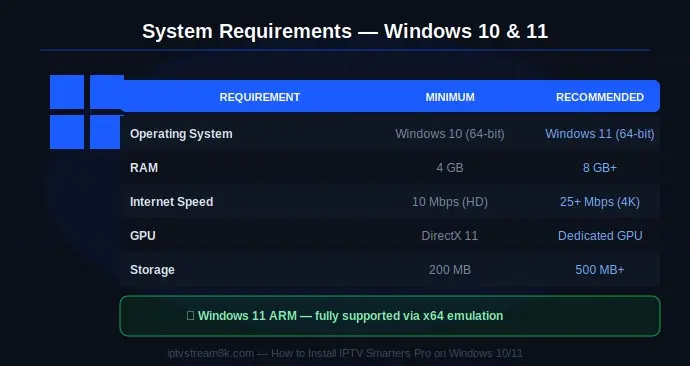
Before you install IPTV Smarters Pro on Windows, confirm your PC meets these requirements:
| Requirement | Minimum | Recommended (4K) |
|---|---|---|
| Operating System | Windows 10 (64-bit) | Windows 11 (64-bit) |
| RAM | 4 GB | 8 GB+ |
| Internet Speed | 10 Mbps (HD) | 25+ Mbps (4K) |
| GPU | Any with DirectX 11 | Dedicated GPU for 4K/8K |
| Storage | 200 MB free | 500 MB+ for EPG cache |
| ARM Devices | ✅ Windows 11 ARM with x64 emulation — fully supported | |
Official IPTV Smarters Pro Windows Download (2026)
Before learning how to install IPTV Smarters Pro on Windows 10/11, you must get the safe, official installer. Avoid third-party cracked versions — they often contain malware and break after the first update.
IPTV Smarters Pro PC Installer
Official .exe file for Windows 10 & Windows 11 — 64-bit and 32-bit supported
⬇️ Download Official PC Version
⚠️ Download only from iptvsmarters.com — never from third-party sites
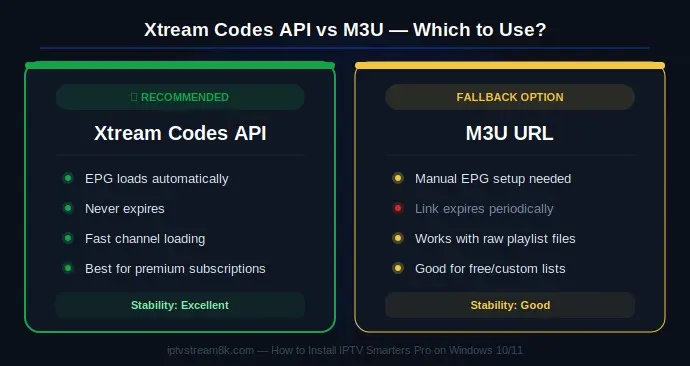
How to Install IPTV Smarters Pro on Windows 10/11 — Step by Step
Once your download finishes, follow these precise steps. The full installation of IPTV Smarters Pro on Windows takes under 2 minutes on a modern SSD:
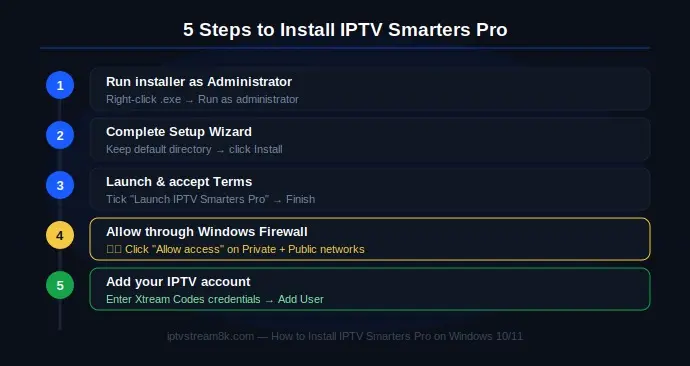
Login Methods — Xtream Codes API vs M3U URL
When you install IPTV Smarters Pro on Windows 10/11, choosing the right login method is critical. Here’s the comparison:
| Login Method | Required Data | Best For | Stability |
|---|---|---|---|
| ⭐ Xtream Codes API | Username, Password, Server URL | Premium subscriptions | Excellent — includes EPG |
| M3U URL | Long M3U link or local file | Free/custom lists | Good — expires periodically |
We strongly recommend Xtream Codes API — it syncs your EPG and channel categories automatically, doesn’t expire, and is far more stable than M3U on PC. IPTVStream8K provides Xtream Codes credentials instantly after subscription.
How to enter Xtream Codes in IPTV Smarters Pro on Windows:
- Open IPTV Smarters Pro → click “Add New User”
- Select “Login with Xtream Codes API”
- Enter your Username, Password, and Server URL from your IPTVStream8K welcome email
- Click Add User — channels load in seconds.

Playback Optimization — Get the Best Quality on Windows
Once you’ve completed installing IPTV Smarters Pro on Windows 10/11, fine-tune these settings for zero-buffer 4K streaming:
Security & Antivirus Fixes for IPTV Smarters Pro on Windows
When you install IPTV Smarters Pro on Windows 10/11, Windows Defender may show a false positive warning. Because the app connects to external streaming servers, some firewalls flag it as unrecognized software. This is common for all open media players.
Fix Windows Defender false positive:
- Open Windows Security → Firewall & network protection
- Click “Allow an app through firewall”
- Click “Change settings” → “Allow another app”
- Browse to the IPTV Smarters Pro installation folder and select the .exe
- Check both Private and Public network boxes → click OK
Troubleshooting — Common Problems After Installing on Windows
| Problem | Cause | Fix |
|---|---|---|
| Black screen, audio plays | Decoder mismatch | Switch player to VLC in Settings → Player Selection |
| App won’t connect to server | Firewall blocking | Allow Smarters Pro through Windows Defender Firewall |
| Channels buffering on 4K | HW acceleration off / slow network | Enable Hardware Acceleration + switch to Ethernet |
| EPG not loading | Using M3U instead of Xtream Codes | Switch to Xtream Codes API login — EPG auto-loads |
| Login credentials not working | Typo or wrong server URL | Copy-paste from provider email — no trailing spaces |
| App crashes on startup | Missing Visual C++ runtime | Install Microsoft Visual C++ Redistributable from Microsoft.com |
For a complete guide to every IPTV problem beyond Windows, see our IPTV Troubleshooting Guide 2026 and our IPTV Stuck on Loading fix guide.
🚀 Ready to Stream? Start With IPTVStream8K
Now that you know exactly how to install IPTV Smarters Pro on Windows 10/11, pair it with the best IPTV provider — 55,000+ channels, instant activation, from $10.99/month.
Get Started — iptvstream8k.com
📲 Questions? Contact us on WhatsApp or Email — 24/7
Related Guides
FAQ — How to Install IPTV Smarters Pro on Windows 10/11
Install Complete — Now Get the Best Content
IPTV Smarters Pro on Windows works best with a reliable provider. IPTVStream8K — 55,000+ channels, 4K & 8K, 99.9% uptime, instant Xtream Codes credentials. From $10.99/month.
Get Started — iptvstream8k.com
📲 Questions? WhatsApp or Email — 24/7