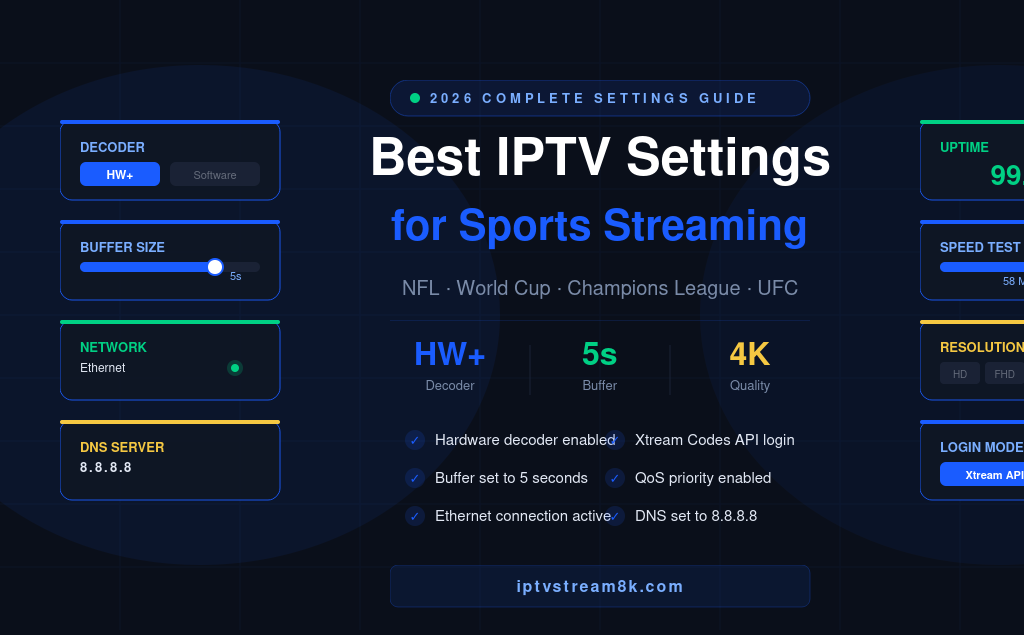
2026 COMPLETE SETTINGS GUIDE
Best IPTV Settings for Sports Streaming
Zero Buffering — NFL, World Cup & Champions League
Tested on Firestick, Smart TV, iPhone, Android & PC — the exact settings used by 55,000+ IPTVStream8K subscribers
🚀 Get the Best IPTV for Sports — iptvstream8k.com
From $14.99/month · Free trial · All devices supported
The best IPTV settings for sports streaming are different from regular TV settings. Live sports demand lower latency, higher buffer tolerance, and hardware-accelerated decoding — because a frozen screen during a penalty kick or a game-winning touchdown is unacceptable. The good news: getting the best IPTV settings for sports streaming takes less than 10 minutes and makes a dramatic difference in stream quality.
This guide covers every setting you need to optimize — from buffer size and decoder selection to network configuration and device-specific tweaks. Every recommendation has been tested during high-traffic sports events including the FIFA World Cup, NFL playoffs, UFC pay-per-views, and Champions League nights. Apply these best IPTV settings for sports streaming and you’ll notice the difference from your very first match.
⚡ Quick Summary: The best IPTV settings for sports streaming are: Hardware decoder (HW+), buffer size 5–10 seconds, Ethernet connection, 5 GHz Wi-Fi as backup, Xtream Codes API login, and high-performance power mode. Pair these settings with IPTVStream8K for zero-buffering live sports in 4K.
📋 Quick Navigation
Why Sports Streaming Needs Different IPTV Settings
The best IPTV settings for sports streaming differ from regular TV settings for three key reasons:
| Factor | Regular TV | Live Sports |
|---|---|---|
| Bitrate | 5–8 Mbps (HD) | 15–25 Mbps (4K sports) |
| Server Load | Steady | Massive simultaneous spikes |
| Latency Tolerance | High — delay acceptable | Low — freeze = missed goal |
| Buffer Needs | 1–2 seconds enough | 5–10 seconds recommended |
| Decoder Load | Light — lower motion | Heavy — fast motion, high FPS |
Sports content also runs at higher frame rates (50fps or 60fps) compared to regular TV (25fps). This doubles the decoding load on your device — which is why hardware decoding becomes essential for the best IPTV settings for sports streaming.
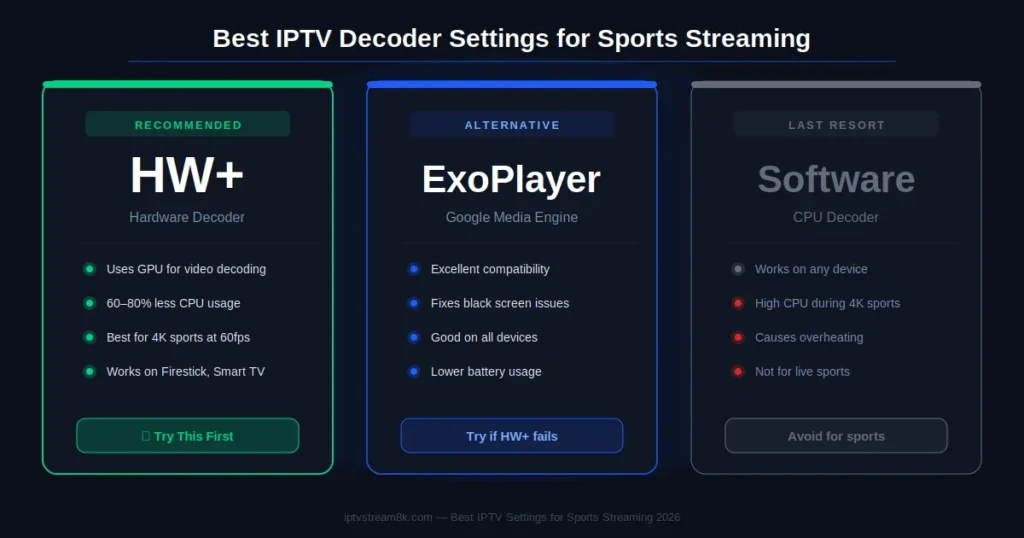
Best IPTV Decoder Settings for Sports Streaming
The decoder setting is the single most impactful change you can make for IPTV sports streaming settings. The wrong decoder causes buffering, black screens, and high CPU usage — even on fast internet connections.
Recommended Decoder Order for Sports
Best IPTV Buffer Settings for Sports Streaming
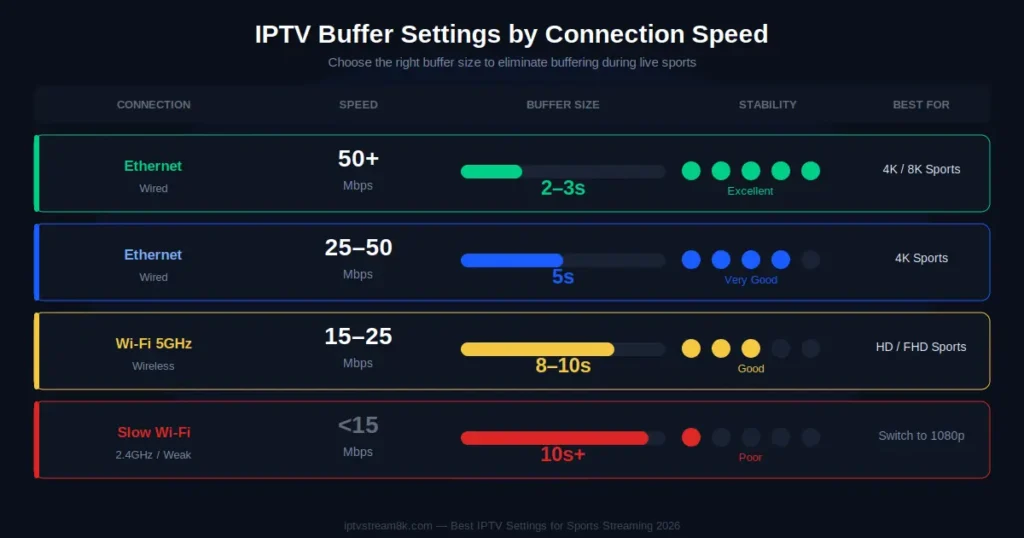
Buffer settings are critical for the best IPTV settings for sports streaming. A properly sized buffer absorbs temporary network fluctuations — preventing visible freezing during crucial match moments.
| Connection Speed | Recommended Buffer | Best For |
|---|---|---|
| 50+ Mbps Ethernet | 2–3 seconds | Fast channel switching + stability |
| 25–50 Mbps Ethernet | 5 seconds | Best balance for 4K sports |
| 15–25 Mbps Wi-Fi | 8–10 seconds | Absorbs Wi-Fi fluctuations |
| Under 15 Mbps | 10+ seconds + switch to 1080p | Slow connection survival mode |
To set buffer size: open your IPTV app → Player Settings → Buffer Size → select your recommended value. In TiviMate, go to Settings → Player → Buffer. In IPTV Smarters Pro, go to Settings → Stream Settings → Buffer.
Best Network Settings for IPTV Sports Streaming
Your network configuration has the biggest impact on IPTV sports streaming settings. Here are the optimal network settings for buffer-free live sports:
1. Use Ethernet — Always
For the best IPTV settings for sports streaming, a wired Ethernet connection is non-negotiable during major events. Wi-Fi signal strength fluctuates constantly — especially when neighbors are streaming the same match. Ethernet provides consistent bandwidth without interference. For Firestick, use an Amazon Ethernet adapter ($15). For Smart TVs and Android TV boxes, plug directly into your router.
2. Set DNS to 8.8.8.8
Slow DNS resolution delays your stream loading and causes initial buffering. Set your streaming device’s DNS to Google’s servers:
- Primary DNS: 8.8.8.8
- Secondary DNS: 8.8.4.4
On Firestick: Settings → Network → [Your Network] → Advanced → DNS. On Android TV: Settings → Network → IP Settings → Static → enter DNS values.
3. Enable QoS on Your Router
Quality of Service (QoS) tells your router to prioritize streaming traffic over other household devices. During a World Cup Final, this ensures your IPTV stream gets full bandwidth even if family members are downloading files or gaming. Access your router at 192.168.1.1, find QoS or Traffic Priority settings, and set your streaming device to highest priority.
4. Use 5 GHz Wi-Fi if Ethernet Isn’t Possible
Connect to your router’s 5 GHz band — not 2.4 GHz. The 2.4 GHz band is shared by dozens of neighboring networks and household devices. The 5 GHz band is faster and far less congested. Your network name usually ends in “_5G” or “_5GHz”.
5. Speed Test Before Every Major Match
Visit Speedtest.net 30 minutes before kickoff. You need at least 25 Mbps with ping under 50ms for stable 4K sports. If your speed is lower, switch to 1080p before the match starts — don’t wait until you’re already buffering.
Best IPTV App Settings for Sports — TiviMate & Smarters Pro
Here are the exact best IPTV settings for sports streaming for the two most popular apps:
TiviMate — Best Settings for Sports Streaming
- Player → Video Decoder: Hardware (HW+)
- Player → Buffer Size: 5000ms (5 seconds) for Wi-Fi / 3000ms for Ethernet
- Player → Aspect Ratio: Fit to Screen
- EPG → Update Interval: Every 8 hours (prevents update during matches)
- General → Auto-reconnect: Enable — auto-reconnects if stream drops
- General → Remember position: Enable — resumes from where you left if connection drops
- Sports channels → Add to Favorites: Pre-add FOX Sports, beIN Sports, Sky Sports before the tournament
IPTV Smarters Pro — Best Settings for Sports Streaming
- Settings → Player → Video Decoder: Hardware
- Settings → Stream Settings → Buffer Time: 5 seconds
- Settings → Login Method: Xtream Codes API (more stable than M3U for live sports)
- Settings → Auto Reconnect: Enable
- Settings → Parental Controls: Disable during sports sessions (prevents accidental lock)
- Live TV → Sports category: Pin to home screen for one-tap access
Device Settings for Best IPTV Sports Streaming Performance
🔥 Firestick Settings for Sports
- Display Resolution: Settings → Display & Sounds → Display → set to 4K UHD (or 1080p for slower connections)
- HDR: Enable if your TV supports it — richer colors during sports broadcasts
- Storage: Keep 500MB+ free — Firestick needs headroom to decode high-bitrate sports streams
- Sleep Mode: Disable during matches — Settings → Display & Sounds → Screen Saver → set to Never
📱 iPhone Settings for Sports Streaming
- Auto-Lock: Settings → Display & Brightness → Auto-Lock → Never (during matches)
- Low Power Mode: Turn OFF — Low Power Mode limits CPU performance and causes buffering
- Background App Refresh: Settings → General → Background App Refresh → Off
- See our Best IPTV Apps for iPhone guide for the best iOS player for sports
💻 Windows PC Settings for Sports
- Power Plan: High Performance — prevents CPU throttling during 4K decoding
- GPU Drivers: Update before major tournaments — outdated drivers cause decoder failures
- Background processes: Close Chrome tabs, pause OneDrive, disable Windows Update during matches
- Full setup guide: How to Install IPTV Smarters Pro on Windows
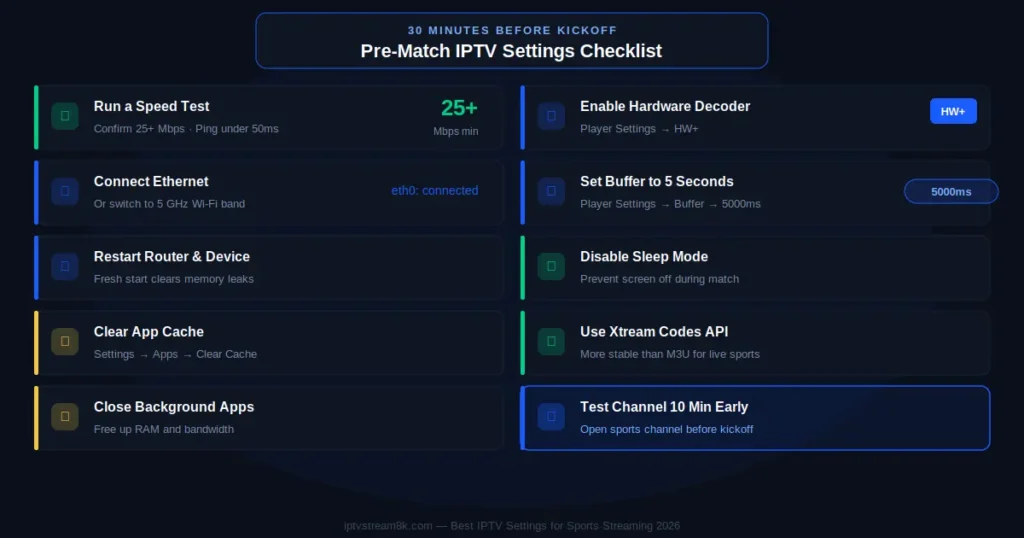
Pre-Match Checklist — Best IPTV Settings for Sports Streaming
Run through this checklist 30 minutes before every major match to ensure you have the best IPTV settings for sports streaming:
🚀 Best IPTV Settings Mean Nothing Without the Right Provider
Even perfect settings can’t fix a bad IPTV server. IPTVStream8K delivers 99.9% uptime during World Cup, NFL & Champions League — dual-server infrastructure, 55,000+ channels, true 4K. From $14.99/month.
Get Started — iptvstream8k.com
✅ Free Trial · ✅ PayPal & Credit Card · ✅ All Devices · ✅ 24/7 Support
Related Guides
- Best IPTV for FIFA World Cup 2026 — Complete Guide
- IPTV Troubleshooting Guide 2026 — Fix All Problems
- Best Free IPTV Apps 2026 — Top Players for Sports
- Best IPTV Apps for iPhone & iPad 2026
- How to Install IPTV Smarters Pro on Windows
FAQ — Best IPTV Settings for Sports Streaming
Apply the Best IPTV Settings + Get the Best Provider
Perfect settings + IPTVStream8K = zero buffering during World Cup, NFL, Champions League and UFC. 55,000+ channels, 4K quality, 99.9% uptime. From $14.99/month.
Get Started — iptvstream8k.com
55,000+ Channels · 4K & 8K · From $14.99/month · All Devices