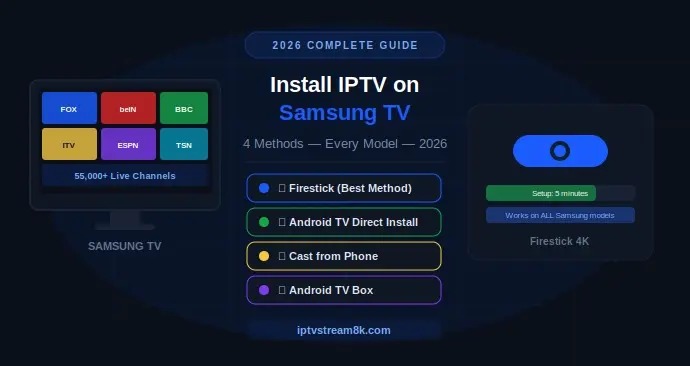
2026 COMPLETE SETUP GUIDE
How to Install IPTV on Samsung TV
4 Methods That Actually Work in 2026
Tizen OS · Android TV · Firestick · Casting — complete step-by-step guide for every Samsung TV model.
🚀 Get IPTVStream8K — Works on Samsung TV Instantly
55,000+ channels · 4K & 8K · From $10.99/month · Free trial available
If you’ve searched for how to install IPTV on Samsung TV, you’ve probably already discovered the frustrating truth: Samsung’s built-in app store doesn’t carry the IPTV apps you want. Samsung TVs running Tizen OS — which covers most models sold before 2023 — have a curated store of around 3,500 apps, and dedicated IPTV players with M3U, Xtream Codes, and EPG support are almost entirely absent from it.
The good news is that installing IPTV on a Samsung TV is completely straightforward — it just doesn’t happen through Samsung’s own app store on most models. This guide covers all four working methods for 2026, tells you which one fits your specific Samsung TV, and walks you through each setup step by step.
⚡ Quick Answer: Plug a Firestick 4K into any HDMI port on your Samsung TV. Install TiviMate or IPTV Smarters Pro. Enter your IPTVStream8K credentials. Done in under 5 minutes — works on every Samsung TV model ever made.
📋 Quick Navigation
Step 0: Check Your Samsung TV’s Operating System First
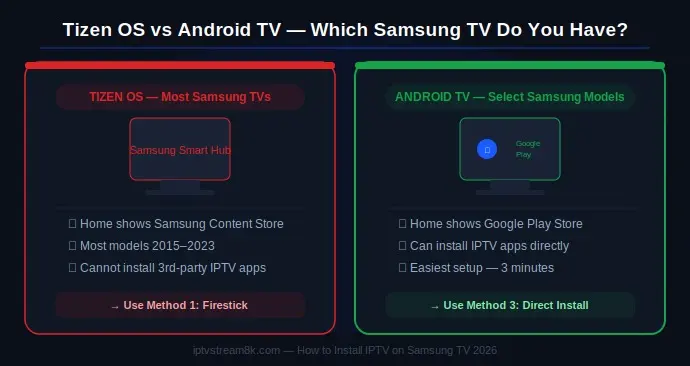
Before choosing a method, you need to know which OS your Samsung TV runs. This determines which installation path works for you — and saves you wasted time trying the wrong approach.
📺 Tizen OS (Most Samsung TVs) How to identify: Home screen shows Samsung Content Store, grey/black minimal launcher, or “Smart Hub” Models: Most Samsung TVs 2015–2023 (QLED, Crystal UHD, Frame TV, etc.) → Use Method 1, 2, or 4 | ✅ Android TV (Some Samsung TVs) How to identify: Home screen shows Google Play Store, Google Assistant icon, or colorful Android launcher Models: Select Samsung models with Android TV built in → Use Method 3 (easiest) |
Method 1: Firestick — The Best Way to Install IPTV on Samsung TV
This is the recommended method for installing IPTV on Samsung TV regardless of model or OS. A Firestick plugs into any HDMI port, runs a full Amazon-based Android OS, and gives you access to the complete IPTV app ecosystem — including TiviMate, IPTV Smarters Pro, and Perfect Player. Your Samsung TV simply becomes a display. The Firestick does all the work.
What you need:
- Amazon Firestick 4K (or Firestick 4K Max for best performance)
- Samsung TV with at least one free HDMI port
- Wi-Fi password
- Your IPTVStream8K credentials (Xtream Codes username, password, server URL)
Method 2: Android TV Box — More Power, More Flexibility
An Android TV box is a strong alternative to Firestick for installing IPTV on Samsung TV. Devices like the NVIDIA Shield TV Pro, Chromecast with Google TV, or affordable Android TV boxes all plug into your Samsung TV’s HDMI port and run full Android TV with Google Play access.
Why choose an Android TV box over Firestick:
- Google Play access — install any IPTV app directly, no sideloading required
- More processing power — NVIDIA Shield handles 4K HDR10+ with zero frame drops
- Ethernet built in — no adapter needed on most Android TV boxes
- More storage — larger EPG files and VOD cache load faster
Setup: Plug the Android TV box into Samsung TV HDMI → connect Ethernet or Wi-Fi → open Google Play → search TiviMate or IPTV Smarters Pro → install → enter Xtream Codes credentials. Total time: under 8 minutes.
Method 3: Direct Install — For Samsung TVs With Android TV
If your Samsung TV has Android TV built in, this is the easiest method by far. No extra hardware needed — just download directly from Google Play and you’re watching in 3 minutes.
Method 4: Cast From Phone — No Hardware Required
Samsung TVs support two casting methods that let you stream IPTV from your phone to the big screen without any extra hardware:
📱 Samsung Smart View (Android) Open IPTV app on phone → start a channel → swipe down from top → tap Cast/Smart View → select your Samsung TV. Works on all Android phones. | 🍎 AirPlay (iPhone — 2018+ Samsung TVs) Open IPTV app on iPhone → start channel → tap AirPlay icon → select your Samsung TV. Samsung TVs from 2018 onwards support AirPlay 2 natively. |
All 4 Methods Compared — Which Is Right for You?
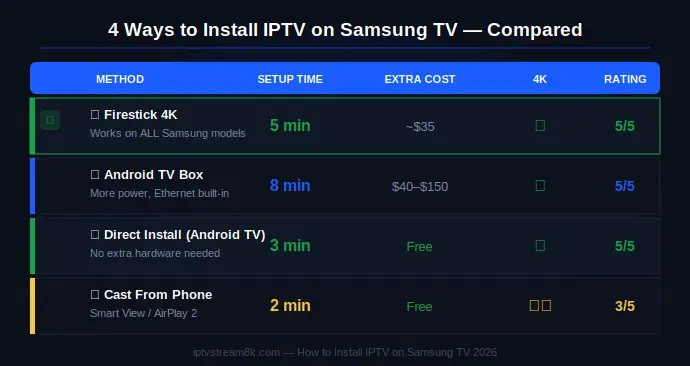
| Method | Setup Time | Extra Hardware | 4K Support | Rating |
|---|---|---|---|---|
| ⭐ Firestick 4K | 5 min | Firestick (~$35) | ✅ Yes | 5/5 |
| Android TV Box | 8 min | Android box ($40–$150) | ✅ Yes | 5/5 |
| Direct (Android TV) | 3 min | None | ✅ Yes | 5/5 |
| Cast from Phone | 2 min | None | ⚠️ Varies | 3/5 |
Best IPTV Apps for Samsung TV in 2026
Once you’ve chosen your method, you need the right app. Here are the top IPTV players for Samsung TV (via Firestick or Android TV box) in 2026. For a full comparison, see our Best Free IPTV Apps 2026 guide.
| App | Best For | Price | TV Interface |
|---|---|---|---|
| ⭐ TiviMate | Best overall — TV-optimized interface | Free / $5/year Premium | Excellent |
| IPTV Smarters Pro | Best free option — all devices | Free | Very Good |
| Perfect Player | Power users — full customization | Free | Good |
| Smart IPTV | Simple setup for beginners | Free | Good |
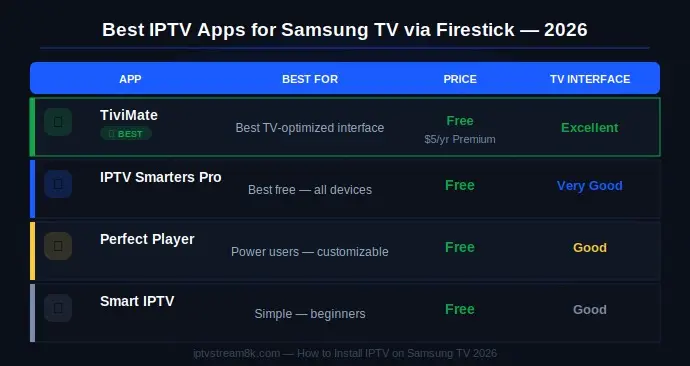
All four apps support Xtream Codes API and M3U playlists — the two login formats provided by IPTVStream8K. Use Xtream Codes for better stability and automatic EPG loading.
Troubleshooting IPTV on Samsung TV — Common Problems & Fixes
| Problem | Cause | Fix |
|---|---|---|
| Buffering on 65″ 4K stream | Wi-Fi too slow or unstable | Connect Firestick via Ethernet adapter |
| Black screen in IPTV app | Wrong video decoder | Switch to Hardware (HW+) in app player settings |
| No IPTV apps in Samsung store | Tizen OS restriction | Use Method 1 (Firestick) or Method 2 (Android box) |
| Casting stutters on large screen | Phone network different from TV | Ensure phone and TV are on the same Wi-Fi network |
| EPG not loading on Samsung TV | M3U playlist — no EPG link | Switch to Xtream Codes login — EPG auto-loads |
| Firestick slow on old Samsung TV | USB power from TV insufficient | Power Firestick from wall adapter, not TV USB |
For a complete troubleshooting guide covering all IPTV problems across all devices, see our IPTV Troubleshooting Guide 2026. If your IPTV is stuck loading on Samsung TV specifically, our 11 proven fixes for IPTV stuck on loading covers every scenario.
🚀 Ready to Watch IPTV on Your Samsung TV?
IPTVStream8K works instantly with Firestick, Android TV box, and direct install — 55,000+ channels, true 4K, Xtream Codes credentials delivered instantly. From $10.99/month.
Get Started — iptvstream8k.com
✅ Free Trial · ✅ PayPal & Credit Card · ✅ All Devices · ✅ 24/7 Support
Related Guides
FAQ — How to Install IPTV on Samsung TV
Start Watching IPTV on Your Samsung TV Today
IPTVStream8K — 55,000+ channels, true 4K & 8K quality, Xtream Codes credentials delivered instantly, 24/7 support. Works with Firestick, Android TV box, and direct install. From $10.99/month.
Get Started — iptvstream8k.com
55,000+ Channels · 4K & 8K · From $10.99/month · All Devices
Great content! Keep up the good work!