2026 COMPLETE DIAGNOSTIC GUIDE
Why Is My IPTV Stuck on Loading?
11 Proven Fixes That Actually Work
Stop staring at a spinning circle. These fixes solve IPTV stuck on loading on Firestick, iPhone, Smart TV, Android & PC — in under 5 minutes.
🚀 Get a Stable IPTV Service — iptvstream8k.com
99.9% uptime · Anti-freeze servers · 24/7 support
If your IPTV is stuck on loading, you’re not alone — it’s the single most reported IPTV complaint in 2026. The frustrating spinning circle or black screen that appears instead of your live channels has a specific cause, and in most cases, a specific fix that takes less than 5 minutes. This guide covers all 11 of them.
The key thing to understand before diving into the fixes: when IPTV gets stuck on loading, the problem is almost never random. It comes from one of four sources — your internet connection, your device, your IPTV app, or your provider’s servers. We’ll diagnose exactly which one is causing your issue and give you the precise fix for each scenario. For a broader look at every IPTV problem and solution, see our complete IPTV troubleshooting guide.
⚡ Quick Answer: When IPTV is stuck on loading, start with these 3 steps: (1) restart your router and IPTV device, (2) clear your app cache, (3) switch from Wi-Fi to Ethernet. These three actions fix over 70% of IPTV stuck on loading cases immediately. If the problem continues, read the full diagnostic guide below.
📋 Jump to Your Fix
- Why IPTV Gets Stuck on Loading
- Diagnostic Table
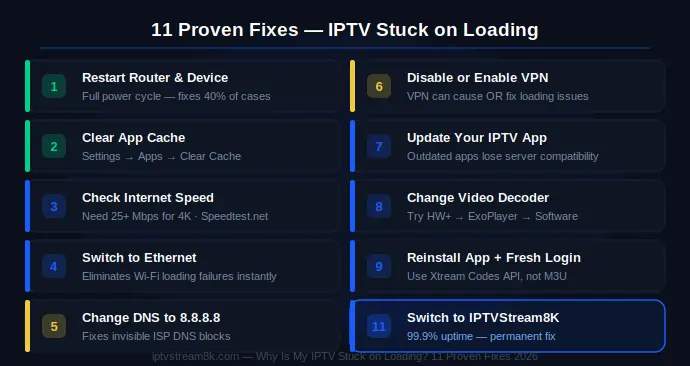
- Fix 1: Restart Everything
- Fix 2: Clear App Cache
- Fix 3: Check Internet Speed
- Fix 4: Switch to Ethernet
- Fix 5: Change DNS
- Fix 6: Disable / Enable VPN
- Fix 7: Update the App
- Fix 8: Change Decoder
- Fix 9: Reinstall the App
- Fix 10: Device-Specific Fixes
- Fix 11: Switch Provider
- FAQ
Why Is My IPTV Stuck on Loading? The Real Causes
Before applying any fix, it helps to understand why IPTV gets stuck on loading. There are four root causes — identifying yours makes the fix obvious and immediate:
🌐 Network Problem Slow Wi-Fi, ISP throttling, or unstable connection prevents the stream from reaching your device. | 📱 Device Problem Corrupted cache, low RAM, outdated firmware, or wrong decoder settings cause loading failures. |
📺 App Problem Outdated IPTV player, expired M3U token, or wrong login method causes channels to fail. | 🖥️ Provider Problem Overloaded or low-quality IPTV servers are the most common cause of persistent loading issues. |
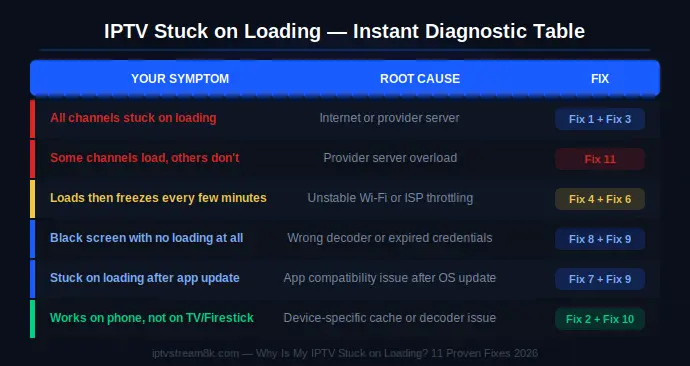
IPTV Stuck on Loading — Instant Diagnostic Table
Use this table to identify your exact problem before applying any fix. For a full breakdown of every IPTV problem, see our complete IPTV troubleshooting guide:
| Your Symptom | Root Cause | Go To |
|---|---|---|
| All channels stuck on loading | Internet or provider server | Fix 1, Fix 3 |
| Some channels load, others don’t | Provider server overload on specific feeds | Fix 11 |
| IPTV loads then freezes every few minutes | Unstable Wi-Fi or ISP throttling | Fix 4, Fix 6 |
| Black screen with no loading at all | Wrong decoder or expired credentials | Fix 8, Fix 9 |
| IPTV was working, now stuck after update | App compatibility issue after OS update | Fix 7, Fix 9 |
| IPTV stuck on loading only in evenings | ISP throttling peak hours | Fix 6 (VPN) |
| Works on phone, not on TV/Firestick | Device-specific cache or decoder issue | Fix 2, Fix 10 |
| IPTV stuck on loading after changing provider | Wrong login method or expired M3U link | Fix 9 |
Fix 1: Restart Everything — Solves 40% of IPTV Stuck on Loading Cases
The most underestimated fix for IPTV stuck on loading is a full restart. Not just the app — everything. Routers accumulate connection errors over time. IPTV devices fill RAM with cached data. A complete restart clears all of this in 60 seconds.
Fix 2: Clear App Cache — The Most Overlooked Fix for IPTV Stuck on Loading
Over time, your IPTV app accumulates corrupted cache data — broken stream references, outdated EPG files, and expired session tokens. This corrupted cache is a major reason why IPTV gets stuck on loading even when your internet is perfectly fine.
On Firestick / Android TV:
- Go to Settings → Applications → Manage Installed Applications
- Find your IPTV app (TiviMate, IPTV Smarters, etc.)
- Tap Force Stop, then tap Clear Cache
- ⚠️ Do NOT tap “Clear Data” — this deletes your login credentials
- Relaunch the app and test your channels
On iPhone / iPad:
- Go to Settings → General → iPhone Storage
- Find your IPTV app and tap Offload App
- Reinstall from the App Store — your login data is preserved
On Samsung / LG Smart TV:
- Go to Settings → Support → Device Care → Manage Storage
- Find your IPTV app and select Clear Cache
Fix 3: Check Your Internet Speed — IPTV Needs More Than You Think
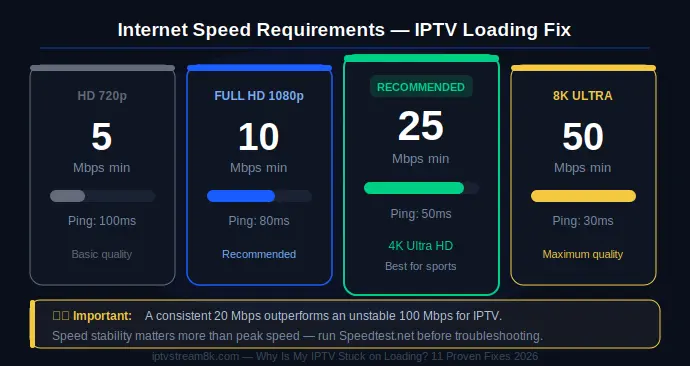
Many users assume their internet is fast enough, but IPTV stuck on loading often happens on connections that seem fast but are actually unstable or throttled. Visit Speedtest.net and check these numbers:
| Stream Quality | Minimum Speed | Recommended | Max Ping |
|---|---|---|---|
| HD (720p) | 5 Mbps | 10 Mbps | 100ms |
| Full HD (1080p) | 10 Mbps | 15 Mbps | 80ms |
| 4K Ultra HD | 25 Mbps | 35 Mbps | 50ms |
| 8K | 50 Mbps | 80 Mbps | 30ms |
Fix 4: Switch to Ethernet — Instantly Eliminates Wi-Fi Loading Failures
Wi-Fi is the #1 hidden cause of IPTV stuck on loading. Even a strong signal fluctuates — neighboring networks, walls, and router congestion all cause packet loss that forces your stream to stop and reload.
For Firestick users, the Amazon Ethernet Adapter for Fire TV costs under $15 and eliminates Wi-Fi loading issues immediately. If Ethernet isn’t possible, switch to the 5 GHz band on your router — look for your network name ending in “_5G” or “_5GHz”. According to Apple Support, all modern smartphones support 5 GHz Wi-Fi.
Fix 5: Change DNS Server — Fixes Invisible Loading Blocks
If your ISP’s DNS blocks IPTV endpoints, your app gets stuck on loading before the stream even starts. Change your device DNS to Google’s servers:
- Primary DNS: 8.8.8.8
- Secondary DNS: 8.8.4.4
Firestick: Settings → Network → [Your Network] → Advanced → DNS
Android TV: Settings → Network → IP Settings → Static → enter DNS
iPhone: Settings → Wi-Fi → tap network → DNS → Manual → add 8.8.8.8
Windows: Network Settings → Adapter Settings → IPv4 Properties → DNS
Fix 6: Disable or Enable VPN — It Can Work Both Ways
If you have a VPN enabled: Disable it and test. If channels load immediately, your provider blocks VPN IPs — disable the VPN or try a different server location.
If you don’t have a VPN and IPTV is stuck only in evenings: Your ISP is throttling traffic. Try ProtonVPN (free) or Surfshark (best multi-device).
Fix 7: Update Your IPTV App — Outdated Players Get Stuck on Loading
After major iOS, Android, or FireOS updates, older app versions lose compatibility and get stuck on loading. Update your player:
- Firestick: Amazon Appstore → search your app → tap Update if available
- Android TV: Google Play Store → My Apps → update your IPTV player
- iPhone: App Store → profile icon → check pending updates
- PC: Visit the official app website — check for a newer installer
See our Best Free IPTV Apps 2026 guide for the best updated players.
Fix 8: Change Video Decoder — Fixes Black Screen With No Loading
If your IPTV is stuck on loading with a black screen and audio only, the problem is a decoder mismatch. In your app, go to Settings → Player → Video Decoder and try in order:
- Hardware (HW+) — try first. Best performance on modern devices
- ExoPlayer — if Hardware causes black screen. Excellent compatibility
- Software — last resort. Works everywhere but high CPU on 4K
For full decoder optimization, see our Best IPTV Settings for Sports Streaming guide.
Fix 9: Reinstall the App With Fresh Credentials
- Note your Xtream Codes credentials or M3U URL before uninstalling
- Uninstall your IPTV app completely
- Restart your device after uninstalling
- Reinstall from the official source
- Log in fresh using Xtream Codes API — more stable than M3U
- Test with a single channel before loading your full playlist
Fix 10: Device-Specific Fixes for IPTV Stuck on Loading
Some IPTV stuck on loading issues are unique to specific devices. Here are targeted fixes for each platform — not covered by the general steps above. For a full device-by-device breakdown, visit our complete IPTV troubleshooting guide.
🔥 Firestick — IPTV Stuck on Loading
- Free up storage: Firestick needs 500MB+ free to stream without loading failures. Delete unused apps from Settings → Applications.
- Disable “Collect App Usage Data”: Settings → Preferences → Privacy Settings → turn off. This background process steals bandwidth during streams.
- Reseat Ethernet adapter: The micro-USB Ethernet adapter port can work loose — unplug and reseat the connection firmly.
- Use a dedicated IPTV player: If the built-in Amazon app is loading slowly, install TiviMate or IPTV Smarters Pro. See our Best Free IPTV Apps guide.
📱 iPhone & iPad — IPTV Stuck on Loading
- Disable Low Power Mode: Settings → Battery → Low Power Mode → Off. Low Power Mode throttles both CPU and network performance.
- Check Local Network permission: Settings → Privacy → Local Network → make sure your IPTV app is toggled ON.
- Enable Hardware Decoding: In your IPTV app → Player Settings → set Video Decoder to Hardware (HW).
- Switch to 5 GHz Wi-Fi: Settings → Wi-Fi → select the network ending in “_5G” or “_5GHz”.
- For more, see our Best IPTV Apps for iPhone & iPad guide.
📺 Android TV Box — IPTV Stuck on Loading
- Set DNS to 8.8.8.8: Settings → Network → Advanced → DNS. This often improves connection speed to IPTV servers by 15–30%.
- Enable hardware decoding: In your IPTV player settings → switch from Software to Hardware (HW+) decoder.
- Use Ethernet: A wired connection is always more stable than Wi-Fi for 4K streaming on Android TV boxes.
- Clear app data: Settings → Apps → [IPTV App] → Storage → Clear Cache.
📺 Samsung / LG Smart TV — IPTV Stuck on Loading
- Update Smart TV firmware: Settings → Support → Software Update. Outdated firmware breaks IPTV codec compatibility.
- Connect via Ethernet: Most Samsung and LG TVs have a built-in Ethernet port — use it instead of Wi-Fi.
- Use a Firestick instead: If your Smart TV’s IPTV app keeps getting stuck, a Firestick plugged into HDMI reliably outperforms the built-in app.
💻 Windows PC — IPTV Stuck on Loading
- Update GPU drivers: Outdated drivers cause hardware decoding failures that appear as endless loading screens.
- Check Windows Firewall: Windows Defender sometimes blocks IPTV app network access. Add your IPTV player to the allowed apps list (Windows Security → Firewall → Allow an app).
- Set power plan to High Performance: Windows throttles CPU in balanced mode — switch to High Performance during IPTV sessions.
- Full Windows setup: How to Install IPTV Smarters Pro on Windows.
🍎 Mac — IPTV Stuck on Loading
- Allow network access: System Settings → Privacy & Security → make sure your IPTV app has network access enabled.
- Use Ethernet via USB-C adapter: MacBooks on Wi-Fi are subject to the same interference issues as other devices.
- Try VLC as player: If your IPTV app is stuck, paste the M3U URL directly into VLC Media Player to rule out an app-specific issue.
Fix 11: Switch Provider — When Nothing Else Works
If you’ve applied every fix above and your IPTV is still stuck on loading — especially during peak hours — the problem is your provider’s servers. No device optimization can fix overloaded, low-quality servers.
Signs your provider is the problem:
- ✅ Loading issues happen only during major events (sports, prime time)
- ✅ Netflix, YouTube work perfectly on the same connection
- ✅ Support takes hours to respond and doesn’t solve the problem
- ✅ The loading issue has existed since you subscribed
Stop Applying Fixes — Fix the Root Cause
If your IPTV keeps getting stuck on loading despite correct settings and fast internet, switching providers solves it permanently. IPTVStream8K runs dual-server infrastructure with 99.9% uptime.
55,000+ channels · 4K & 8K quality · From $10.99/month
🚀 Never Deal With IPTV Stuck on Loading Again
IPTVStream8K — 55,000+ channels, 99.9% uptime, dual-server infrastructure, true 4K quality. From $10.99/month.
Get Started — iptvstream8k.com
✅ Free Trial · ✅ PayPal & Credit Card · ✅ All Devices · ✅ 24/7 Support
Related Guides
FAQ — Why Is My IPTV Stuck on Loading?
Fixed Your Loading Issue? Keep It Fixed Permanently
The fastest permanent solution for IPTV stuck on loading is a provider with real uptime infrastructure. IPTVStream8K — 55,000+ channels, 4K quality, 99.9% uptime, 24/7 support.
Get Started — iptvstream8k.com
55,000+ Channels · 4K & 8K · From $10.99/month · All Devices