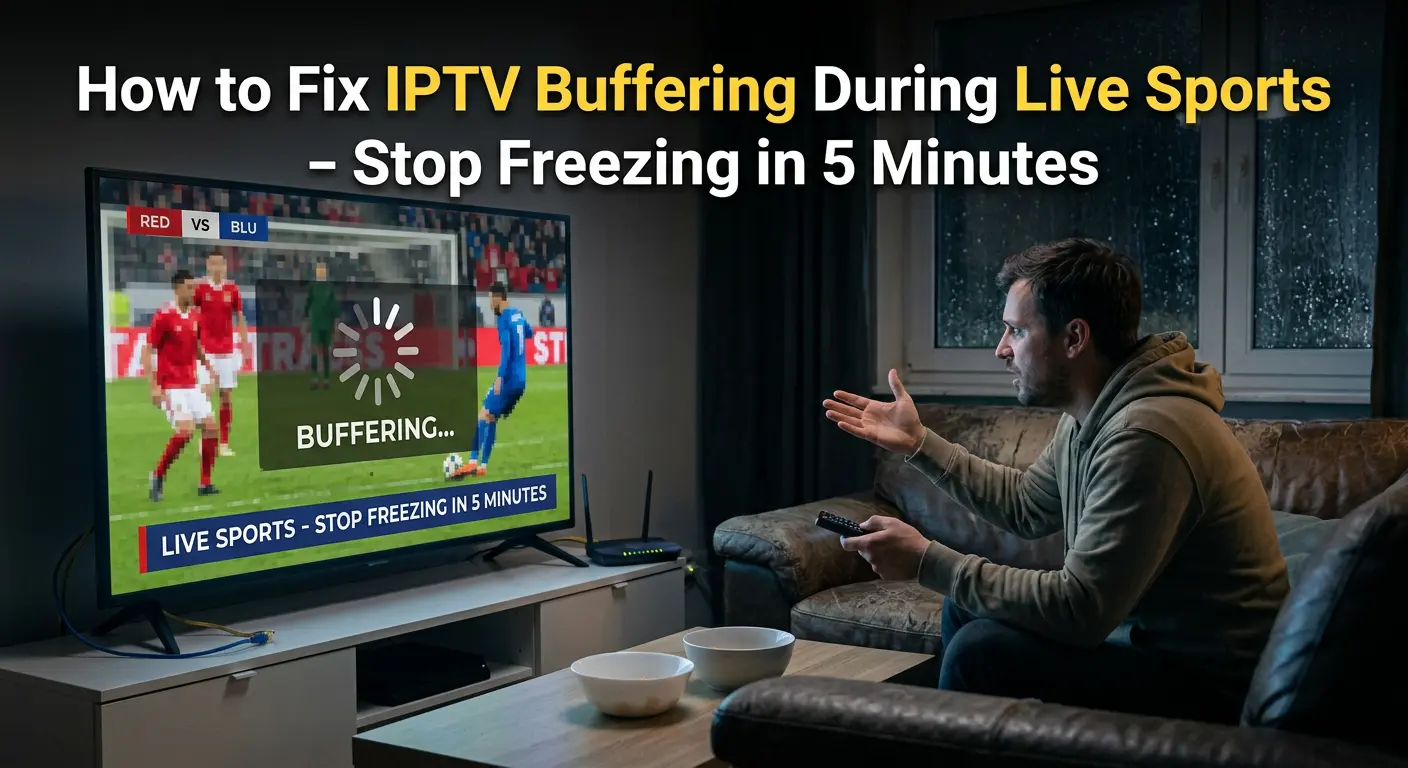
2026 COMPLETE FIX GUIDE
How to Fix IPTV Buffering During Live Sports
Stop Freezing in 5 Minutes — Any Device
Works on Firestick, Smart TV, iPhone, Android, and PC — tested during World Cup, NFL, and Champions League
🚀 Get a Stable IPTV Service — iptvstream8k.com
Most buffering is caused by your provider — not your device or internet
How to fix IPTV buffering during live sports is the most searched IPTV question during major tournaments — and for good reason. Nothing is more frustrating than a frozen screen during a penalty shootout or a crucial touchdown. The good news: in 90% of cases, IPTV buffering during live sports is completely fixable in under 5 minutes.
This guide walks you through every proven fix for IPTV buffering during live sports — from quick 30-second solutions to advanced network and device optimizations. Every fix has been tested during high-traffic events including the Champions League Final, NFL playoffs, and UFC pay-per-views. We’ll also show you when buffering is your provider’s fault — not yours — and what to do about it.
⚡ Quick Answer: To fix IPTV buffering during live sports: restart your router, switch to Ethernet, enable hardware decoding, increase buffer size, and switch to a lower resolution temporarily. If buffering persists on all channels during all events, your IPTV provider’s servers are overloaded — the only permanent fix is switching to IPTVStream8K with 99.9% uptime.
📋 Quick Navigation
Why Does IPTV Buffer During Live Sports?
IPTV buffering during live sports happens for different reasons than regular buffering. Live sports events create massive simultaneous streaming spikes — millions of viewers hitting the same server at the exact same second. Understanding the cause helps you apply the right fix faster.
| Buffering Pattern | Most Likely Cause | Fix Location |
|---|---|---|
| Buffers only during live sports | Provider server overload | Switch provider |
| Buffers every 20–30 seconds | Slow internet or Wi-Fi | Network fix |
| Buffers only on 4K channels | Speed below 25 Mbps | Lower resolution |
| Freezes then catches up | Buffer size too small | App settings fix |
| Buffers only in evenings | ISP throttling | VPN fix |
| Buffers on all channels always | Bad IPTV provider | Switch to IPTVStream8K |
How to Fix IPTV Buffering During Live Sports — 5-Minute Checklist
When IPTV buffers during live sports, try these fixes first. They solve 80% of buffering problems in under 5 minutes on any device:
Network Fixes — Stop IPTV Buffering During Live Sports
Your network setup has the biggest impact on how to fix IPTV buffering during live sports. Live sports streams require consistent bandwidth — any fluctuation causes freezing at the worst possible moment.
Fix 1: Use Ethernet Instead of Wi-Fi
Ethernet is always faster and more stable than Wi-Fi for IPTV. Wi-Fi signals fluctuate constantly — especially when neighbors are using their networks during the same sports events. A wired connection gives your stream consistent bandwidth without interference. For Firestick, use an Ethernet adapter. For Smart TVs, plug directly into your router.
Fix 2: Connect to 5 GHz Wi-Fi Band
If Ethernet isn’t possible, connect to your router’s 5 GHz band instead of 2.4 GHz. The 2.4 GHz band is shared by dozens of neighboring networks and household devices — microwaves, baby monitors, and Bluetooth all interfere with it. The 5 GHz band is faster and far less congested. Look for your network name ending in “_5G” or “_5GHz” in your Wi-Fi settings.
Fix 3: Speed Test Before Every Match
Visit Speedtest.net before a big match. You need:
- 10 Mbps minimum for stable HD (720p/1080p)
- 25 Mbps minimum for stable 4K streaming
- 50+ Mbps for 8K or multiple streams simultaneously
- Ping below 50ms — high ping causes live stream delays and freezing
Fix 4: Set Up QoS on Your Router
Quality of Service (QoS) prioritizes your streaming device’s traffic over other household devices. Log into your router admin panel (usually 192.168.1.1), find QoS settings, and set your streaming device to highest priority. During a World Cup Final, this ensures your IPTV stream gets full bandwidth even if others are downloading files or gaming.
Fix 5: Change Your DNS Server
Slow DNS lookups can delay stream loading. Change your device DNS to a faster resolver. On most devices, go to Network Settings → DNS and enter: Primary: 8.8.8.8 | Secondary: 8.8.4.4 (Google DNS). This often improves connection speed to IPTV servers by 15–30%.
Device-Specific Fixes for IPTV Buffering During Live Sports
🔥 Firestick — Fix IPTV Buffering During Live Sports
- Clear cache: Settings → Applications → Manage Installed Apps → [IPTV App] → Clear Cache
- Free up storage: Firestick needs at least 500MB free — delete unused apps
- Force close background apps: Hold Home button → select running apps → close all before the match
- Use Ethernet adapter: Amazon sells an official Firestick Ethernet adapter — massive improvement for live sports
- Restart weekly: Unplug Firestick for 30 seconds every week to clear RAM
📱 iPhone & iPad — Fix IPTV Buffering During Live Sports
- Enable hardware decoding in your IPTV app settings → Player Settings → Hardware (HW)
- Close all background apps before the match — swipe up from home screen
- Connect to 5 GHz Wi-Fi — Settings → Wi-Fi → select your 5GHz network
- Delete and reinstall your IPTV app if buffering persists after other fixes
- Check our Best IPTV Apps for iPhone guide for the best iOS player during sports
📺 Smart TV — Fix IPTV Buffering During Live Sports
- Use Ethernet — most Smart TVs have an Ethernet port — use it
- Update firmware — outdated Smart TV firmware causes codec compatibility issues
- Clear app cache — Smart TV Settings → Apps → [IPTV App] → Clear Cache
- Use a Firestick instead — if your Smart TV’s built-in IPTV app keeps buffering, a Firestick plugged into the HDMI port usually performs better
💻 Windows PC — Fix IPTV Buffering During Live Sports
- Enable hardware acceleration in your player settings (see our IPTV Smarters Windows guide)
- Close background apps — Chrome tabs, OneDrive sync, and Windows Update all consume bandwidth
- Update GPU drivers — outdated drivers cause hardware decoding failures during high-bitrate sports streams
- Set power plan to High Performance — Windows throttles CPU during video decode on balanced mode
IPTV App Settings to Fix Buffering During Live Sports
The right in-app settings can eliminate IPTV buffering during live sports even on slower connections. These settings work across TiviMate, IPTV Smarters Pro, and most major players:
- Increase Buffer Size: Player Settings → Buffer → set to Large or 5–10 seconds. This pre-loads stream data so minor network fluctuations don’t cause visible freezing.
- Switch Decoder: Try Hardware → ExoPlayer → Software in order. Some sports streams buffer on Hardware but play perfectly on ExoPlayer.
- Disable Auto-Resolution: Lock your stream to 1080p manually instead of letting the app auto-select. Auto-resolution constantly switches bitrate during live sports, causing micro-stutters.
- Reconnect Playlist: If a specific sports channel buffers but others don’t, refresh your playlist. Sports channels sometimes switch server IPs during high-traffic events.
- Use Xtream Codes API: If you’re on M3U, switch to Xtream Codes login. API connections are more stable during live sports spikes than M3U playlist URLs.
When Your IPTV Provider Is the Problem
If you’ve tried every fix in this how to fix IPTV buffering during live sports guide and the problem remains — especially if it only happens during major events like World Cup matches, NFL playoffs, or Champions League nights — your provider’s servers are overloaded.
Cheap IPTV providers oversell their server capacity. They work fine during quiet periods but collapse when millions of users stream the same match simultaneously. No amount of network or device optimization fixes a bad server.
Signs Your Provider Is the Problem
- ✅ Buffering happens only during major sports events — not regular TV
- ✅ Buffering affects multiple channels simultaneously during the same match
- ✅ Other devices on your network (YouTube, Netflix) work fine
- ✅ Buffering disappears after the match ends
- ✅ Support takes hours or days to respond during events
IPTVStream8K runs dual-server infrastructure specifically designed for live sports peak loads — 99.9% uptime during World Cup, NFL, Champions League, and UFC events. From $14.99/month.
🚀 Stop IPTV Buffering During Live Sports — Permanently
IPTVStream8K — 99.9% uptime during major sports events, dual-server infrastructure, 55,000+ channels in 4K. From $14.99/month, instant activation.
Get Started — iptvstream8k.com
✅ Free Trial · ✅ PayPal & Credit Card · ✅ All Devices · ✅ 24/7 Support
Related Guides
- Best IPTV for FIFA World Cup 2026 — Complete Guide
- IPTV Troubleshooting Guide 2026 — Full Fix Playbook
- Best Free IPTV Apps 2026 — Top Players for Sports
- Best IPTV Apps for iPhone & iPad 2026
- How to Install IPTV Smarters Pro on Windows
FAQ — How to Fix IPTV Buffering During Live Sports
Ready for Zero Buffering During Live Sports?
Join thousands of sports fans who fixed IPTV buffering permanently by switching to IPTVStream8K — 99.9% uptime, 55,000+ channels, 4K quality, 24/7 support.
Get Started — iptvstream8k.com
55,000+ Channels · 4K & 8K · From $14.99/month · All Devices